
Available with: All Plans
Available to: All Users
This article explains how to update settings on an existing template, including how to work with locked settings that require Admin assistance.
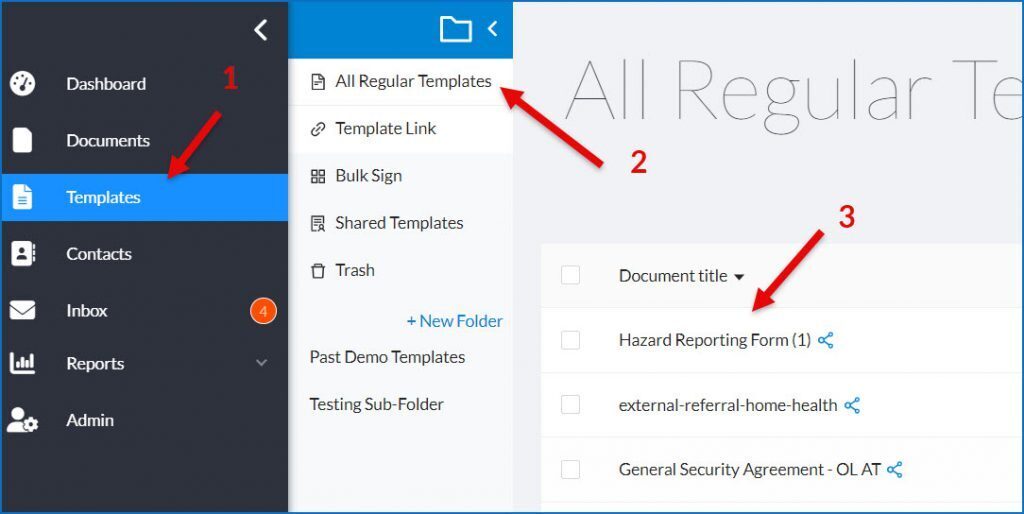
To update Template settings:To update Template settings:- Go to your Templates Folder
- Select the type of Template you want to update (regular, template link, bulk sign)
- Click on the name of the template you want to update
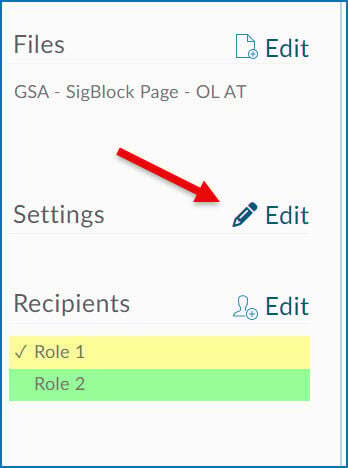
- On the template’s document design page, click Edit next to Settings in the left-hand sidebar
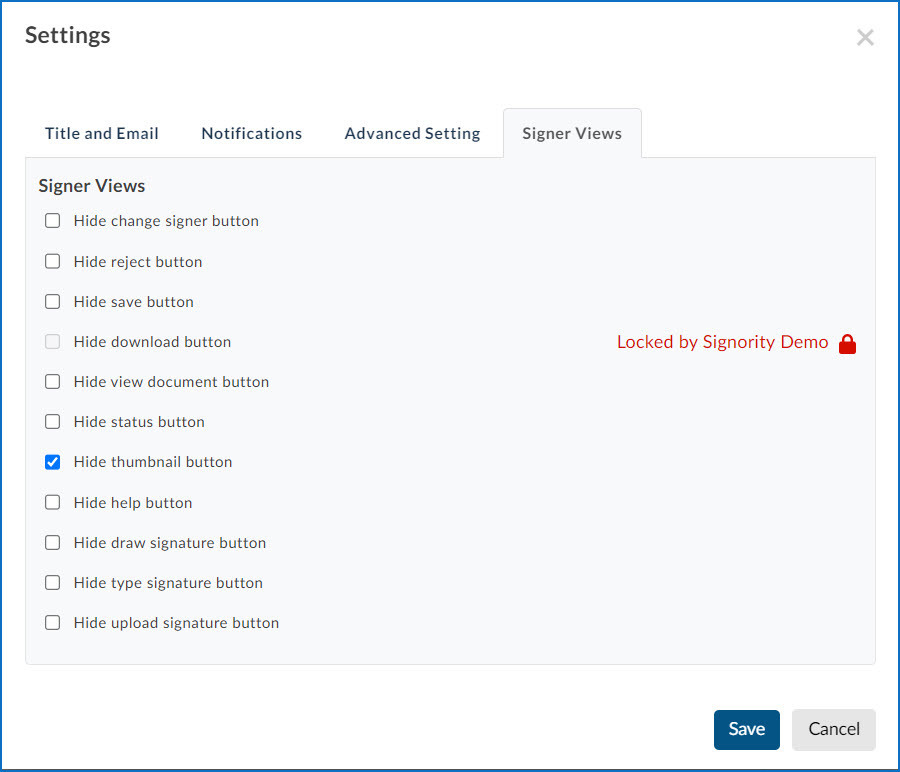
- In the window that appears, navigate to the setting you want to update. In the example below, Signer Views is selected. If a setting is locked — as shown with the Hide Download Button option below — contact your Admin to have it unlocked before proceeding.
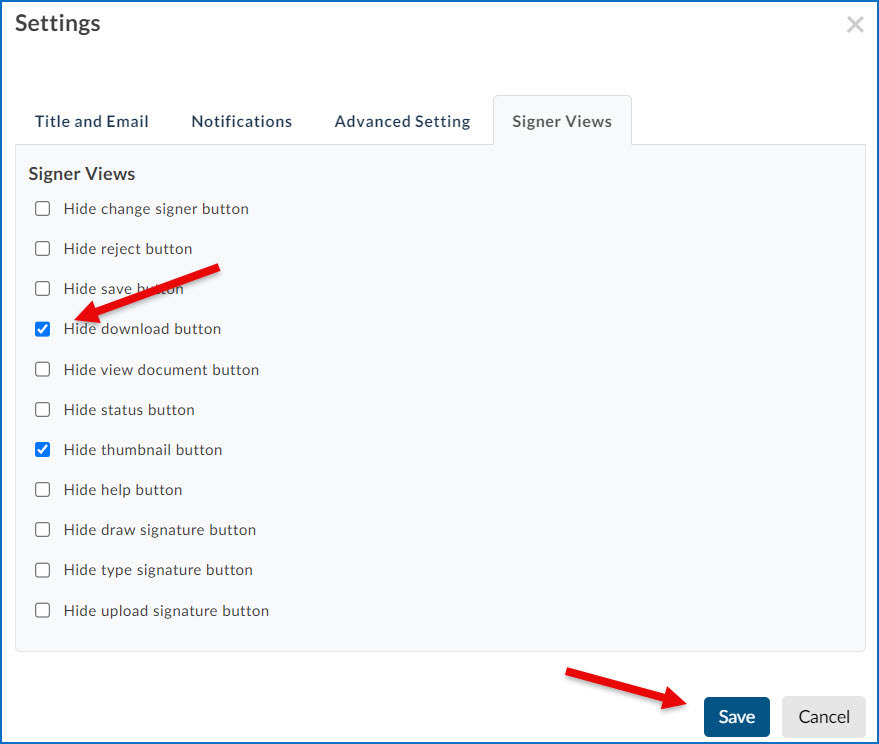
- Once the option has been unlocked update the setting and then click Save as seen below.
- Once you have completed this task in all the Templates you need to update ask the Admin to relock any settings they had unlocked for you in the process.