
Many contracts require signers to confirm they've read every page — not just sign at the end. Traditionally this is handled by initialing each page, but Signority's Page View Evidence feature streamlines this process digitally. When enabled, a checkbox appears at the bottom of every page, which signers must check before they can proceed. Each interaction is then recorded in the document's audit trail, creating a verifiable record and reducing the risk of disputes over whether terms were reviewed.
Setting Up Page View Evidence On the Recipients Page
When creating a new document for eSignature, you can enable Page View Evidence directly from the Recipients page.
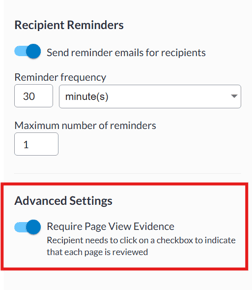
To get started, click +New from your Dashboard and upload your document. On the Recipients page, add your signers and edit the invitation email if needed. In the right-hand panel, you'll find several settings sections — scroll down past Notification Delivery, Invitation Email, and Recipient Reminders to reach Recipient Settings. There you'll see the Page View Evidence Required option — check it to enable the feature for this document.
You can also enable this later in the Document Editor if you prefer to set it up there.
Setting Up Page View Evidence On the Document Editor
The Document Editor lets you enable Page View Evidence whether you're editing an existing document or building a template. This makes it the go-to place for managing the setting outside of the initial document creation flow.
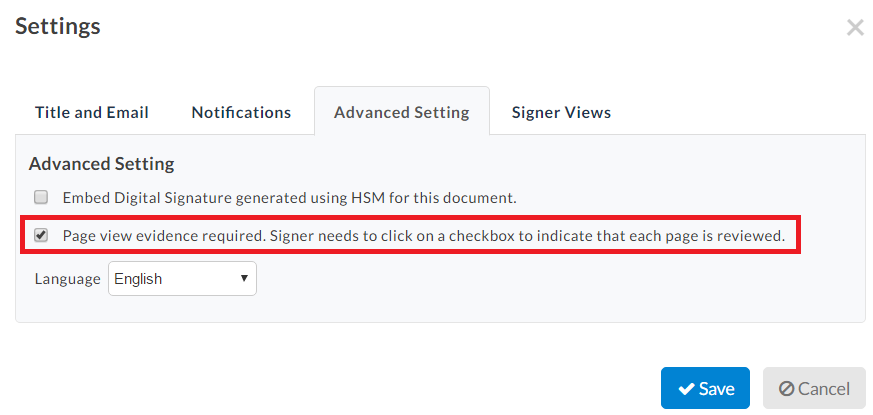
In the Editor, click Edit next to Settings on the left panel and open the Advanced Settings tab. You'll find the Page View Evidence Required toggle there. Enable it if you haven't already done so on the Recipients page, then finish adding your Tags and click Next to send the document for signature.
What Signers Experience
For signers, the process is straightforward. As they move through the document, they'll see a checkbox on each page with the prompt "I have read the current page." Once checked, the box is locked and cannot be unchecked. After completing all pages, the signer clicks Submit to finalize. 
Viewing the Captured Page View Evidence Information
Once a signer checks that they have read the current page, you can review the Page View Evidence in two places:
- Document History — shows in real time which pages each signer has read and when.
- Audit Trail — included in the finalized document as a permanent, verifiable record.

Further Readings
The Anatomy of an Audit Trail
Setting Your Default Automatic Reminder and Notification Settings
Track and Monitor Document Status & Workflow