
Available with: All Plans A Signority usage report provides account activity data for a selected time period, including team role, team usage, subteam usage, and individual usage. Admins also see the total usage of their team. Usage reports include:
 When the Usage Report page opens, you will see a window similar to the one below. On this page, you will have access to your monthly reports as well as any previous usage reports you have run.

- Team role usage
- Team usage
- Subteam usage
- Individual usage
- Total team usage (Admins only)
How do I access Usage Reports?
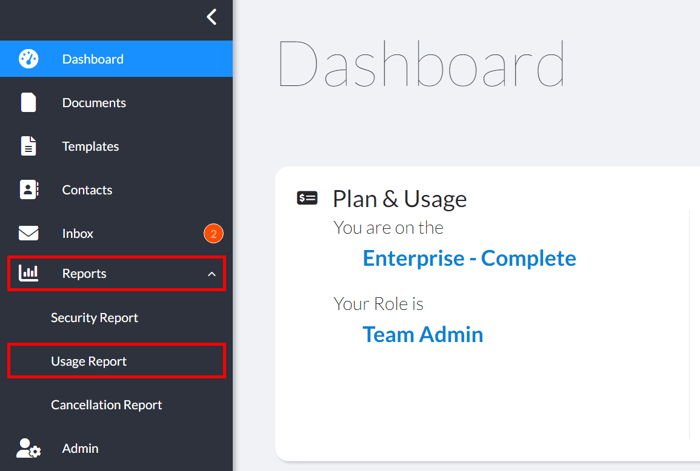
Accessing your usage reports can be done using the left sidebar menu. On the bottom of this menu you will see an icon labeled Reports. From the User Menu, click on Reports, and then click on Usage Report in the menu that appears as shown below.When the Usage Report page opens, you will see a window similar to the one below. On this page, you will have access to your monthly reports as well as any previous usage reports you have run.
How do I run a Usage Report?
- Select the timeframe you wish the report to cover. You can either use one of Signority’s default timelines (1) or specify a custom timeframe (2) you require.
- Click Run (3) to have the report generated.
- Your report will be generated and will be listed under Saved Reports (4) and an email will be sent to you once the report is ready for you to view.
- Once you receive the email, go back to the Usage Report page to find your report under Saved Reports.
- Under Saved Reports (4) you can then click on the report to view it.
- Export the report as a CSV file using the "Download" button.
What features are available on the Usage Report page?
- Filter Results: When running a report, you can use the Filter Results dropdown to filter your reports by a Signority’s default timelines. Note: When you run one of these filters the results will not include the day you are making the request.The preset time periods are:
- Yesterday: The day prior
- Last 7 Days: The previous 7 days
- Last 30 Days: The previous 30 days
- Quarter to Date: Quarters are based on the calendar year, Jan-Feb, March-May, June-Sept, and Oct-Dec. For example, if you are running this report on August 8th you will receive a report for the dates of June 1 to August 7th
- Last Quarter: The quarter prior to the one you are currently in
- Year to Date: From January 1st to the day before running the report
- Subscription Period to Date: From your subscription start date (or last renewal date) to the day before you are running the report (If you are paying monthly, you will receive only up to the previous 30 days. If you are yearly, it will go back up to 364 days, depending on when you are running it.)
- Date from/to: If the Filter Results menu does not suit your need, these fields allow you to run a report for a specific timeframe that you require.
- Run: This button will send the request for the report to be generated. Once complete, you will receive an email letting you know it is ready for viewing.
- Saved Reports: This is where your report will appear. It will list the reports' status as queued (queued to be generated), complete (ready to view), or opened.
- Rename: Rename the report by selecting the checkmark next to the report and then clicking "Rename"
What information is included in the report?
- User Name: The team member this information is relevant to.
- User Email: The email address associated with the respective team member.
- Document Storage: The amount of storage space used by the team member for storing signed documents.
- Documents Sent: The total number of documents sent by the team member.
- Average Time To Sign In: The average time it took for the team member to sign in to Signority.