
Available with: Team & Custom Plans Role: Team Admin, Super Admin
Team Level Default Text and Date Tag Sizes
- From the user dashboard, navigate to the admin portal and then go to the "Users & Teams" page.
- Select the team that you want to edit.
- In the action menu select "Settings"
- In the pop-up that appears, select the "Documents" tab or scroll down to the documents setting section where you will see the "Default text tag size" and "Default date tag size" options.
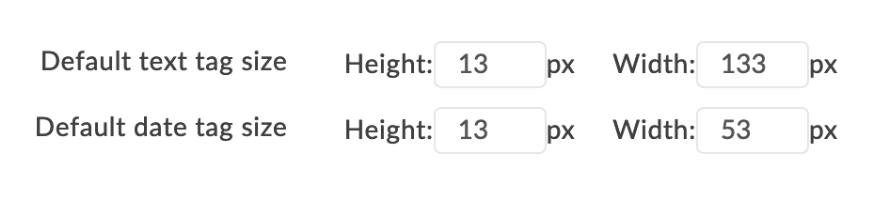
- Change the height and width of the tags as needed, then click "Save".
Organization Level Default Text and Date Tag Sizes
- From the user dashboard, navigate to the admin portal and then select "Global Settings".
- In the pop-up that appears, select the "Documents" tab or scroll down to the documents setting section where you will see the "Default text tag size" and "Default date tag size" options.
- Change the height and width of the tags as needed, then click "Save".