
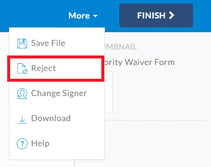
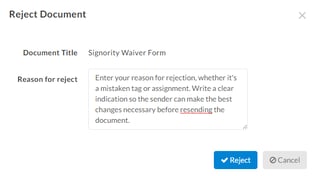
As a signer, you can reject a document directly from the signing page if tags are incorrectly assigned or placed in the wrong location, or if you notice an issue with the document's content. When you reject a document, you provide a reason that is sent to the sender, enabling them to make corrections before resubmitting.
 Alternatively, in the
Document History page, there will be an entry with the reason for rejection listed under the
Notes column and the
Action column will have
Document rejected by.
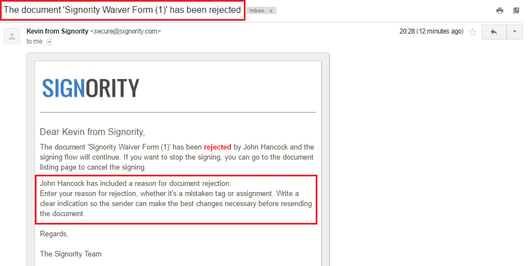
 As the sender, you will also get an email notification confirming the rejected document and information for the reason of rejection. The subject line will also indicate the document has been rejected, in order to quickly determine which document needs attention.
 With the reason for rejection, you can resend the document with any changes or
create a new document from scratch.
How do I reject a document as a signer?
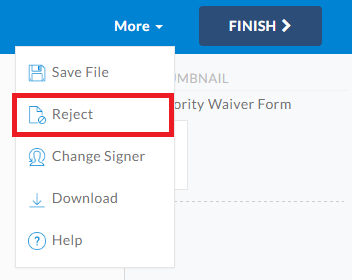
Access your document by using the invitation email in your email inbox. Use the Review Documents button to access the signing page. From the signing page, use the following steps:- Click the More button in the top right and select the Reject option.
- In the window, enter a rejection reason that clearly explains why the document cannot be approved. The reason will be included in the notification email sent to the sender and will help them make the necessary corrections before resubmitting.
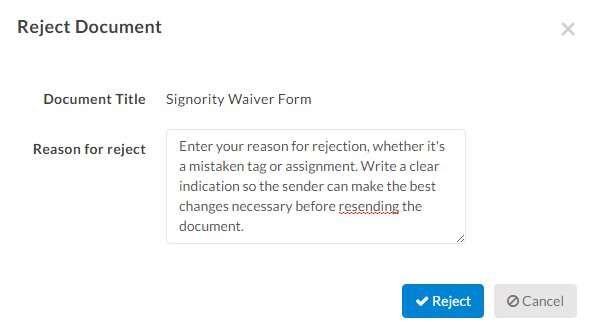
- Click the Confirm button in the window to submit your rejection and finalize it. Once confirmed, the page will reload and you will no longer have access to the document's tags and fields.
How is a document rejection confirmed?
After a document has been rejected, the sender can go to their Signority account and check the document history and status. In the Recipient List page, you can see the E-Sign Status as Rejected next to the signer rejecting the document. Alternatively, in the
Document History page, there will be an entry with the reason for rejection listed under the
Notes column and the
Action column will have
Document rejected by.
 As the sender, you will also get an email notification confirming the rejected document and information for the reason of rejection. The subject line will also indicate the document has been rejected, in order to quickly determine which document needs attention.
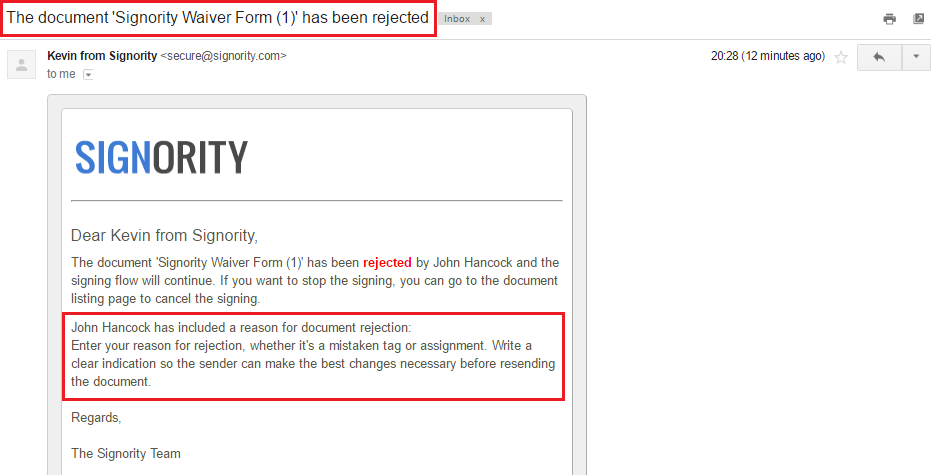 With the reason for rejection, you can resend the document with any changes or
create a new document from scratch.