
You can verify a Digital Signature from Signority is valid using third party validation. This tutorial will cover how to verify Digital Signatures in Adobe Acrobat.
Step 1: Download the Document
You will first need to download the finalized combined PDF document from Signority:
- Login to Signority.
- From the User Dashboard, select Documents from the left navigation menu.
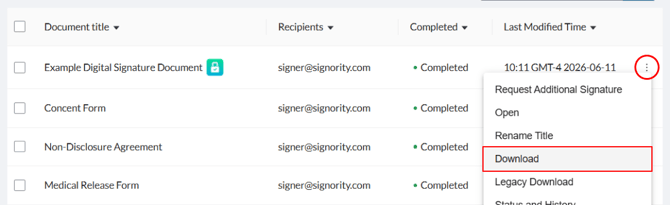
- Find the document you wish to download. Digital Signature documents are marked by a green lock
 next to the documents title.
 - Click the three-dot (︙) menu at the end of the documents row.
- Select Download.
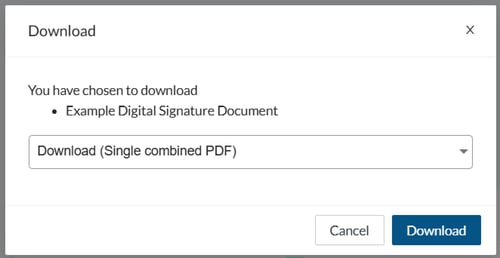
- In the download pop-up window, make sure the download option is Single Combined PDF and then click Download.
Step 2: Verify the Digital Signature
- Open the finalized digital signature document signed in any Adobe reader.
- At the top of the document, you will see a blue ribbon banner that will confirm that validate the signature (1). You can also click into the Signature Panel (2) if your technical team requires any information from the Digital Certificate itself.

Note: If the document loaded quickly and you see that one of the signatures requires further validation, try refreshing the document. This will typically complete the validation process and when it reloads it should verify all the signatures are valid.