
Original Question or Issue:
How to Prevent Changes to Default Share Settings
Environment:
- Product - FileCloud Server
- Version - Any
- Platform - Any
Steps to Reproduce:
Error or Log Message:
Defect or Enhancement Number:
Cause:
Resolution or Workaround:
- Login to the Admin Portal
- Navigate to Settings > Misc > Share
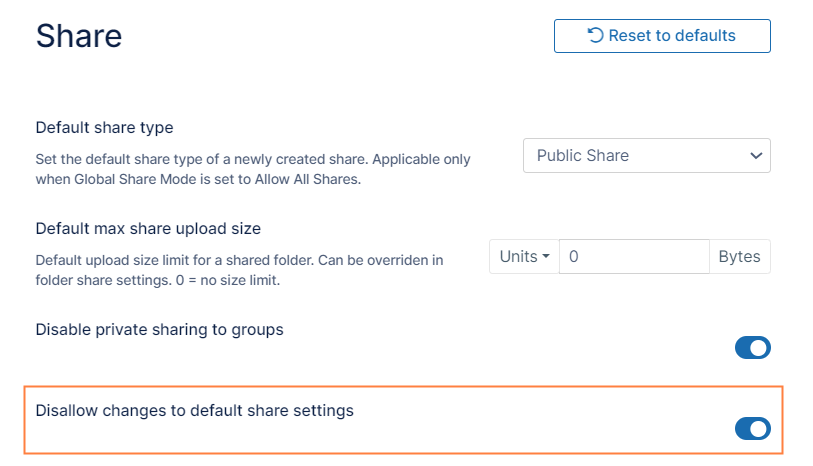
- Scroll down to Disallow changes to default share settings and enable it:
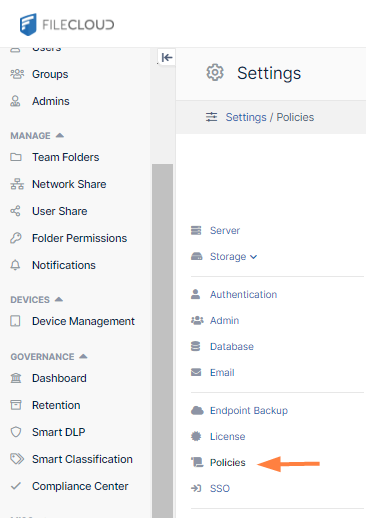
AND - In the inner navigation bar on the left of the page, click Policies
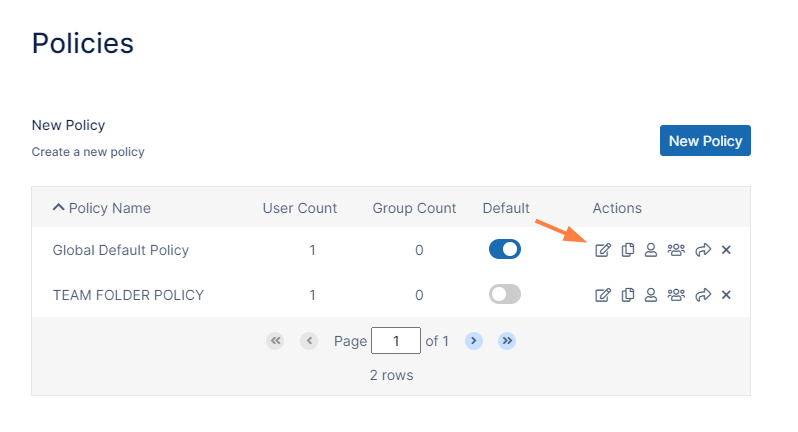
- The Policies page opens.
- Click the Edit icon for the policy of the users who you want to prevent from changing default share settings.
- Click the User Policy tab.
- Scroll down to Disallow Default Share Settings Change, and enable it.

- Repeat steps 5, 6, and 7 for the policies of all users who you want to prevent from changing default share settings.
Now, for users with those policies, the Share link dialog box has a message at top that share settings cannot be changed, and there are no change buttons or clickable options: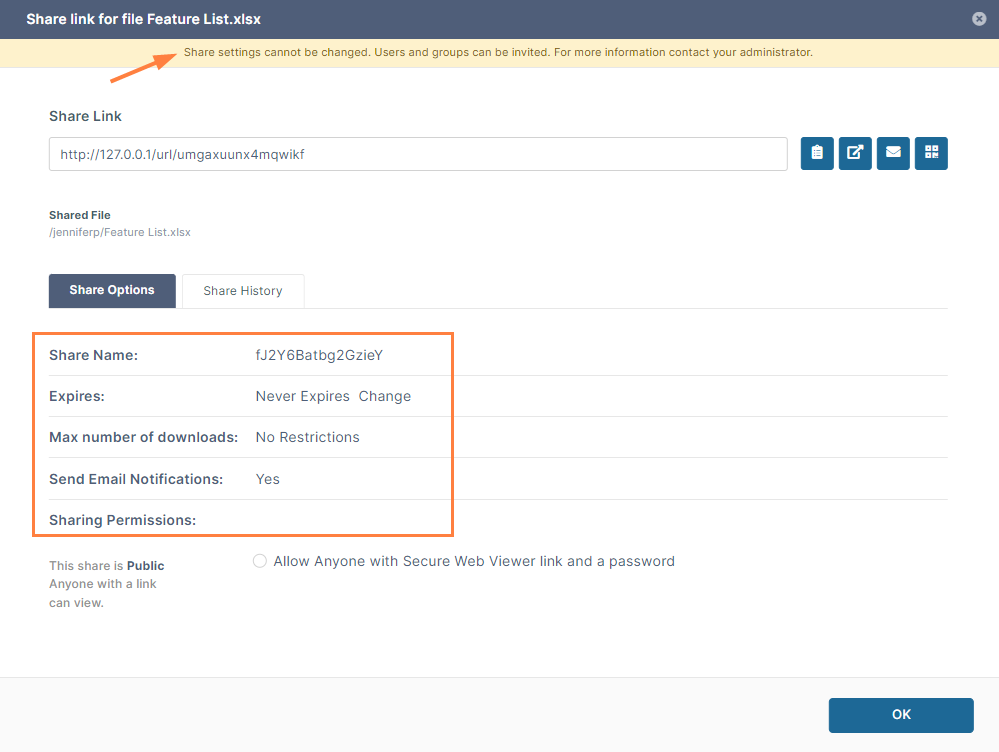
Notes:
https://docs.filecloud.com/fcdoc/latest/server/filecloud-administrator-guide/filecloud-site-setup/share-settings/configure-sharing-defaults