
In this article, you’ll learn how to import PDF form fields as tags when uploading a document into Signority. This feature automatically converts fillable PDF fields into assignable tags, making it faster to prepare documents for signing.
Importing PDF Form Fields as Tags for New Documents
- Log into your Signority account. From the dashboard, click the “+ New” button and select “New Document”.
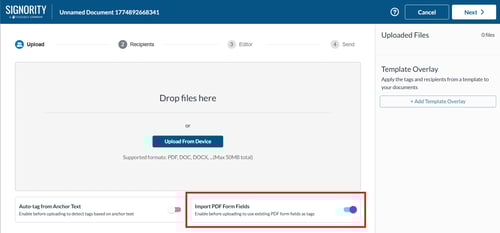
- On the upload page, before uploading your files, make sure that the upload option "Import PDF Fields" toggle located below the upload area is enabled.
-
You can then upload your PDF into Signority and click Next.
-
On the recipients page, you will see that a recipient has been automatically generated. Make sure to edit the name and email address of the recipient and add any other recipients who may need to receive the document for signing.
-
Once you have added in all the information for your recipient(s), click Next.
-
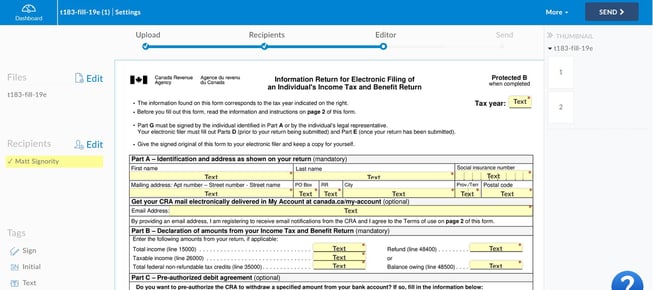
On the document editor, you should see that there are tags placed at each PDF form field. Signority will assign all PDF tags automatically to the recipient that was automatically created. If there are multiple signers in the workflow, you will need to go through and assigned the tags to the correct recipient.
-
Add or remove any tags as needed.
-
Once the document is ready for signature, send the document for signing.
Importing PDF Form Fields when Adding New Files to a Document or Template
If you are adding a new file to your e-signature document on the editor for either documents or templates you can do so in the files pop-up.
- In the editor, select Edit next to Files or if you haven't uploaded any files yet, select the Add Files button in the middle of the screen.
- In the pop-up that appears, ensure that the "Import PDF form fields as Tags" checkbox is checked.
Note: At least one recipient must be added before enabling PDF form field import on the document editor.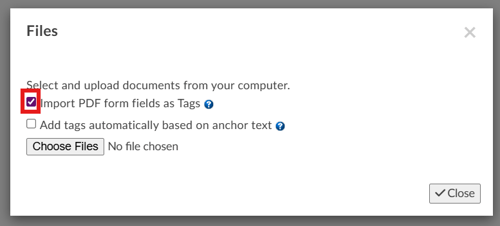
- You can then upload your PDF files by clicking Choose Files.
- Click Close when the files have been uploaded.
-
On the document editor, you should see that there are tags placed at each PDF form field. Signority will assign all PDF tags automatically to the recipient that was automatically created. If there are multiple signers in the workflow, you will need to go through and assigned the tags to the correct recipient.
-
Add or remove any tags as needed.
-
Once the document is ready for signature, send the document for signing or if it is a template you can make sure it is saved and then select the dashboard icon in the top left of the header to exit the editor.