
You can sign documents for yourself in Signority using the standard document creation workflow. The only key difference is that you add yourself as a recipient so you can immediately complete the signing process after sending the document.
If you haven’t already set up your signature, we strongly recommend first completing setting up your default signature. Once configured, your saved signature will be available for faster and more efficient signing across documents.
How to Sign a Document for Yourself
- To begin, open Signority an click + New in the header and select New Document.
- On the Upload page, upload your document from your device, then click Next.
- On the Recipients page, click Add Me to add yourself as the signer. Signority will pre-populate your information as the recipient's information.
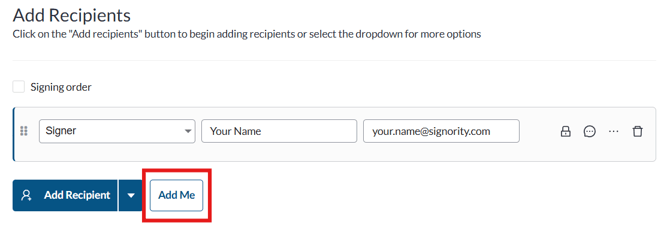
After adding yourself, disregard the rest of the Recipients page. You do not need to customize a message or set a reminder schedule because you are the only signer and you will be re-directed directly to the signing page.
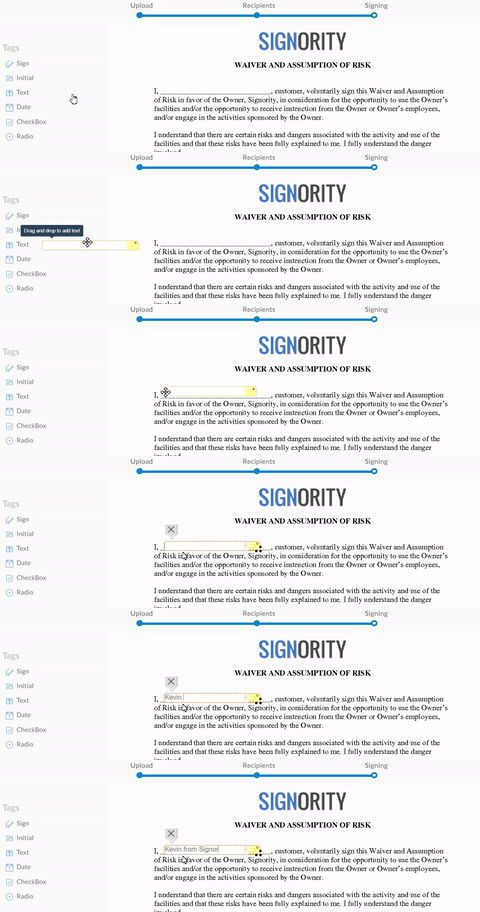
When you're ready, click Next to go to the Editor. - In the Editor, place your tags where needed. You can prefill most fields at this stage.

Note: Signature, Initials, Attachment, and Stamp tags must be completed during signing. - Once you've added all the tags and have filled them in, click on Send in the top right.
- On the confirmation screen, click Add My Signature to open the signing page immediately.
- Complete any remaining fields and click Finished in the top-right corner to finalize the document.
You will receive an email with the final copy or you can download it directly from your Documents page.
Need other signatures? Check out our tutorial on creating electronic signature documents for others here.
Further Readings
Creating and Using Templates for Electronic Signature Documents
Overview of Tags