
Original Question or Issue:
Disable sharing with the EVERYONE group
Environment:
- Product - FileCloud Server
- Version - Any
- Platform - Any
Steps to Reproduce:
Error or Log Message:
Defect or Enhancement Number:
Cause:
Resolution or Workaround:
To disable sharing with the Everyone group, follow these steps:
-
In the FileCloud admin portal's left navigation bar, scroll down and click Settings. Then, on the Settings navigation page, click Policies
.png?cb=b3867db684a574a4c1d796ea3d4fec41)
.
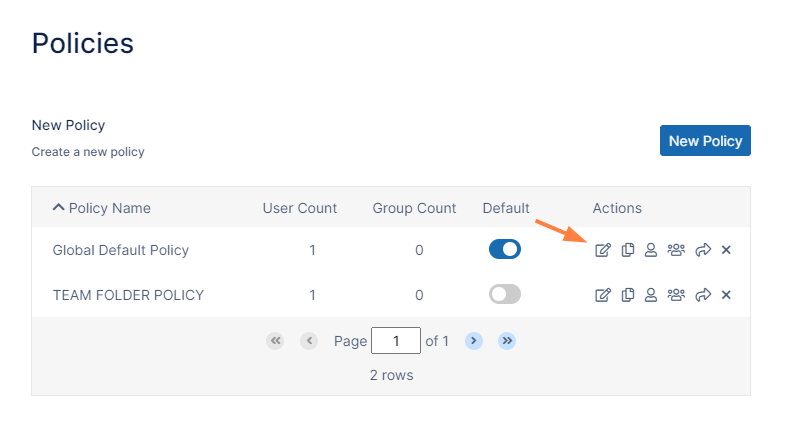
The Policies page opens. -
Click the Edit icon for the policy of the users who you want to prevent from sharing with the Everyone group.
-
The Policy Settings dialog box opens.
-
Click the User Policy tab.
-
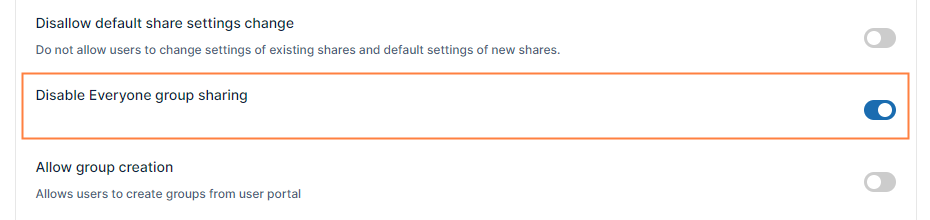
Scroll down to Disable Everyone group sharing and enable it.
-
Click Save.
-
Repeat steps 2 through 5 for the policies of all users who you want to prevent from sharing with the Everyone group.
Notes:
https://docs.filecloud.com/fcdoc/latest/server/filecloud-administrator-guide/filecloud-site-setup/share-settings/configure-sharing-defaults