
Private messages let you send a tailored message to an individual signer without changing what other recipients see. This is useful for providing signer-specific instructions, context, or reminders alongside the standard invitation email.
⚠️ Important: A private message will override the general invitation message for that signer only. Other recipients will still receive the general message.
Want to customize the message for all signers instead? See Customizing Your Invitation Email.
Adding a Private Message for Individual Signers
You can add a private message for a specific signer from either the Recipients page or the Document Editor, depending on how you’re working with your document.
When Creating a New Document (Recipients Page)
When creating a new document, you can add a private message for each signer on the recipients page. If you missed this step or want to make changes later, you can do so in the document editor.
- Click + New on the Dashboard to create a new document.
- Upload your files or click Next to skip to the recipients page.
- On the Recipients page, click the Message icon next to the signer’s name and email.
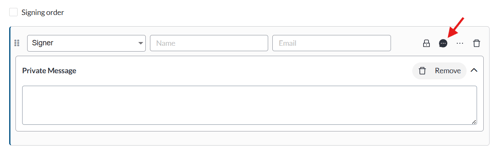
- Enter a Private Message that will override the general custom message for that signer only.
When Setting up a Template or Editing a Document (Document Editor)
- On the Editor, click Edit next to Recipients in the left panel.
- On the Recipients list pop-up, click the Message icon next to the signer’s name and email.
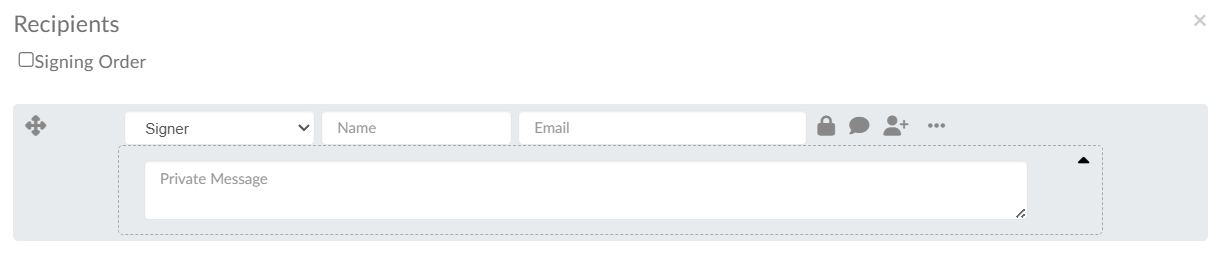
What the Invitation Email Will Look Like
Example invitation email for signer with a private message
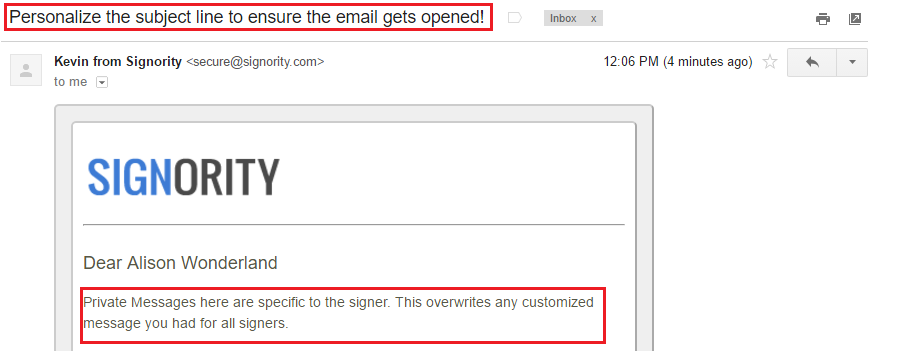
When a private message is set, that signer receives a different message body than other recipients and will overide custom messagesto all recipients as well. All other email details remain the same.
Removing a Private Message
You can remove a private message at any time from the Recipients page or the Document Editor.
On the recipients page, private messages are removed if all of the text is cleared or by clicking Remove at the top right of the private message section. 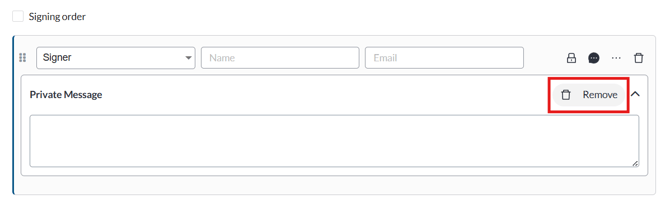
Note: In the updated UI, if a private message is still enabled for that signer, collapsing the Private Message panel will only collapse the section. This allows you to quickly see which recipients have a private message configured. The section is only fully hidden if the Private Message is removed.
In the document editor, you will need to manually delete all of the text to remove the private message.
Once a private message has been removed, that recipient will receive the same email invitation message as other recipients.